
Summary
What this is
Website Security Audit & Actions helps you monitor Google security warnings and manual actions reported for your website. It brings important trust and safety issues into one place so you can quickly identify problems affecting your site's visibility.
What you can do
- Monitor Google security warnings and manual actions.
- Identify hacked content, malware, spam, and policy violations.
- Review affected pages and recommended remediation steps.
- Create remediation tasks for developers or security teams.
- Track issue resolution progress and export security reports.
Security Audit & Actions relies primarily on Google Search Console data. Ensure the connected account has the required permissions to display the latest security information.
Prerequisites
Before using Security Audit & Actions
- A Wranker project is connected to your website.
- Google Search Console integration is configured.
- You have access to the Site Audit module.
- Task permissions are available if assigning remediation work.
Verify your Google Search Console connection before troubleshooting missing security data.
Where to find it
- Open SEO Dashboard.
- Select Site Audit.
- Open Security Audit & Actions from the Tab Index or Site Audit navigation.
- Confirm the correct project is selected.
Confirm the navigation path: SEO → Site Audit → Security Audit & Actions
Step-by-step: Review Security Audit & Actions
Open Site Audit
Open the Site Audit module for the website you want to review.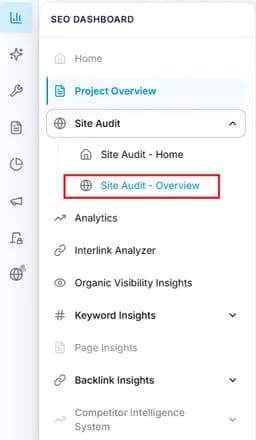
Capture: check connecion
Open Security Audit & Actions
Navigate to SEO Dashboard → Site Audit → Security Audit & Actions.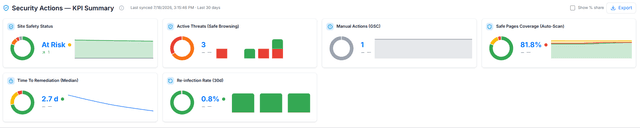
Capture: check connecion
Review the security overview
Check summary cards to identify active security warnings, manual actions, and high-priority issues.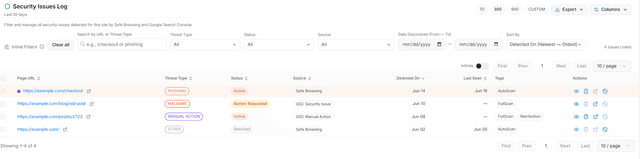
Capture: check connecion
Investigate security alerts
Open an alert to review issue type, severity, affected URLs, and recommended remediation steps.Create remediation tasks
Assign security issues to developers or security team members for resolution.Track issue resolution
Monitor cleanup progress and Google Search Console review status after remediation.Export security reports
Download security alerts and issue statuses for documentation, compliance, or client reporting.
Key Features
Resolve critical security issues such as malware and hacked content first, then submit a review request in Google Search Console if a manual action has been applied.
What you'll see
Common workflows
Resolve security warnings
Review active warnings
Check the security summary cards and identify high-priority issues.Investigate the alert
Review the issue details, affected URLs, severity, and recommended remediation steps.Assign remediation
Create a task for the responsible developer or security team member.Verify resolution
Complete the cleanup and update the issue status after verification.
Recover from hacked content or malware
Remove malicious content
Delete malware, hacked files, or spam content from the website.Restore clean versions
Recover affected files or pages from trusted backups if required.Secure the website
Update the CMS, plugins, themes, passwords, and administrator accounts.Verify cleanup
Confirm the website is secure before requesting Google to review it.
Resolve manual actions
Review manual action
Understand the policy violation reported by Google.Complete required fixes
Resolve all issues related to the manual action.Document the cleanup
Record the remediation work completed by your team.Request review
Submit a reconsideration request through Google Search Console.
Verify after remediation
Monitor review status
Track Google Search Console until the review is completed.Confirm issue resolution
Ensure security warnings or manual actions have been cleared.Export final report
Download the latest security report for documentation or client sharing.