
Summary
Connecting Google Search Console allows Wranker to display Coverage-related reporting inside the Site Audit module. You can connect GSC from:
- Site Audit → Coverage tab (quickest when you are already auditing)
- Project Control Center (PCC) → Integrations (best for managing integrations)
GSC is mandatory specifically to generate and view the Coverage report in Site Audit. Other Site Audit sections do not require GSC.
Prerequisites
- You have a Wranker project created with a domain.
- You have access to the domain’s Google Search Console property in Google.
Make sure you’re signed into the Google account that owns (or has permission for) the correct Search Console property for the project’s domain.
Where to find the connection options
Go to Site Audit and open the Coverage tab. If GSC is not connected, Wranker should show a prompt to connect.
Open the Project Control Center (PCC), go to Integrations, and connect or manage Google Search Console for the project.
Option A: Connect from Site Audit → Coverage tab
Open Site Audit for your project
Navigate to your project's Site Audit area.Go to the Coverage tab
Open the Coverage tab inside Site Audit. If Google Search Console is not connected, Wranker displays a prompt to connect.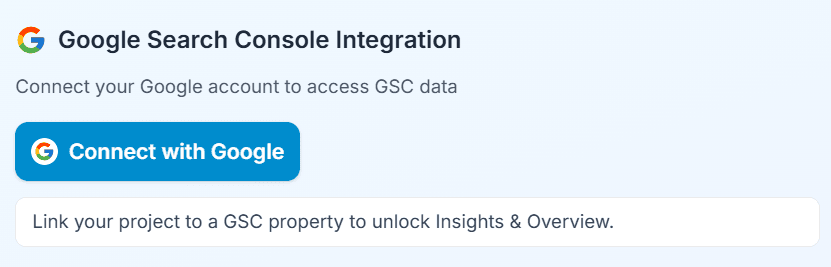
Capture: Coverage tab showing the connect prompt (or empty state) when GSC is not connected.
Start the connection flow
Click the Connect GSC button in the Coverage section. You'll be redirected to Google's authorization screen where you'll need to grant Wranker access to your Search Console property.Complete authorization
Finish the Google authorization process and return to Wranker. Once connected, the Coverage report will begin populating with Search Console data.
Option B: Connect or manage from Project Control Center (PCC) → Integrations
Open Project Control Center (PCC)
Open the Project Control Center for the project you want to manage.Open Integrations
Go to the Integrations section to view and manage connected services.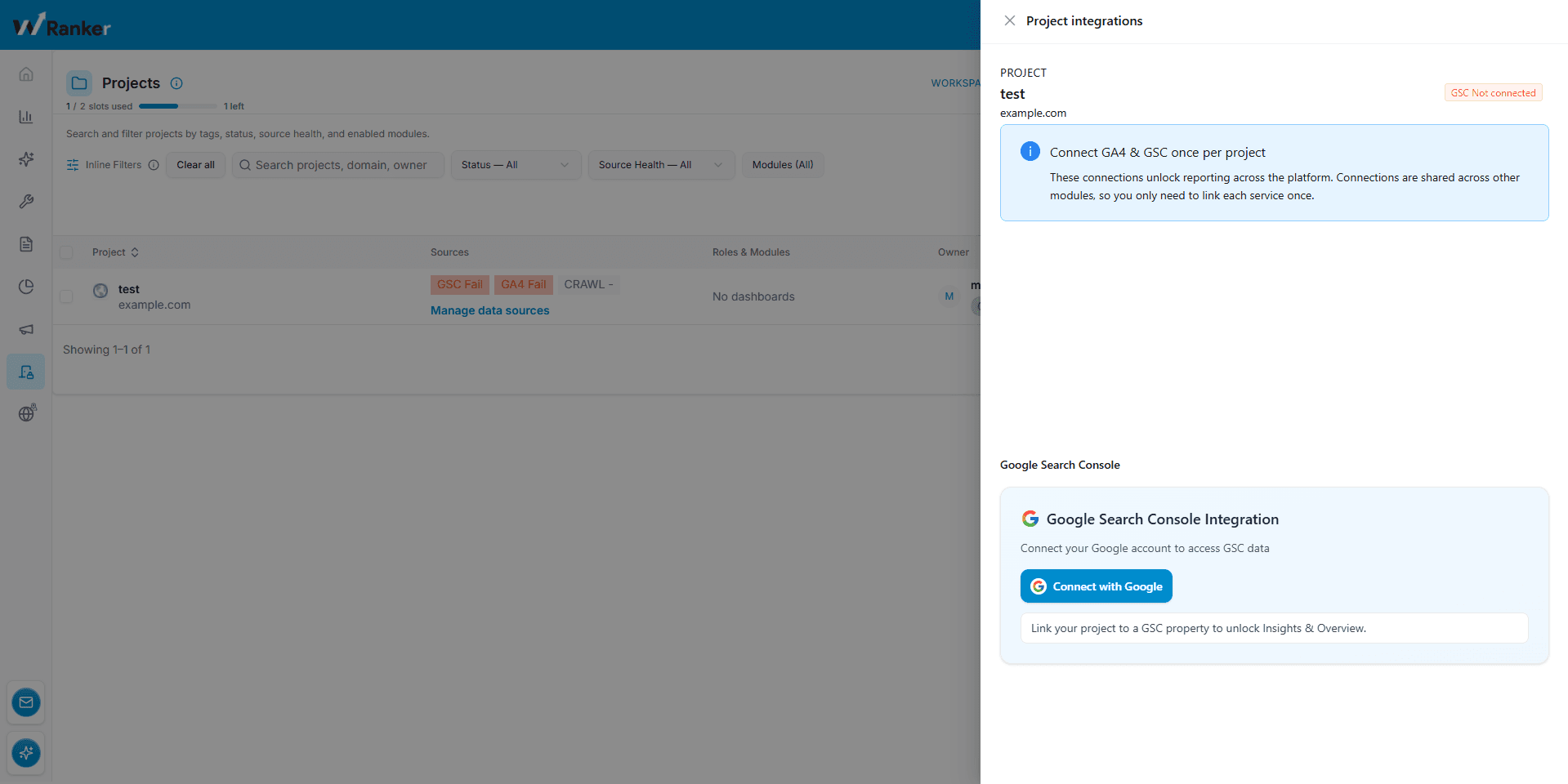
Capture: PCC Integrations screen showing Google Search Console connection status and actions.
Connect Google Search Console
Select Google Search Console and follow the authorization process to connect your account.Manage the integration
After connecting, you can reconnect, change the connected account, or review the integration status from the Integrations page whenever needed.
Expected result after connecting GSC
- The project is connected to Google Search Console (for Coverage reporting).
- The Coverage section in Site Audit can generate and display its report data.
- GSC connection is visible and manageable inside Project Control Center → Integrations.