
Summary
What this is
The Page Experience tab helps you understand how users experience your website pages. It displays Core Web Vitals metrics including Largest Contentful Paint (LCP), First Input Delay (FID), and Cumulative Layout Shift (CLS), along with other page experience signals.
Why use it
- Monitor LCP, FID, and CLS performance.
- Identify Poor and Needs Improvement pages.
- Review optimisation recommendations.
- Create tasks for performance improvements.
- Verify improvements after future audits.
Page Experience helps identify optimisation opportunities. Resolve critical technical issues first before focusing on performance improvements.
Prerequisites
Before using Page Experience
- A Wranker project exists and is connected to a domain.
- You have access to the Site Audit module.
- A Site Audit has been completed for the selected project.
- Required performance data is available for analysis.
- You have Create Task permission to assign optimisation work.
Google requires sufficient performance data before Core Web Vitals results are available for URL groups.
Where to find it
- Open SEO Dashboard.
- Select Site Audit.
- Open Page Experience from the Tab Index.
Confirm the page path shows: SEO → Site Audit → Page Experience
Step-by-step: Review Page Experience performance
Open Site Audit
Open the Site Audit module for the website you want to analyse.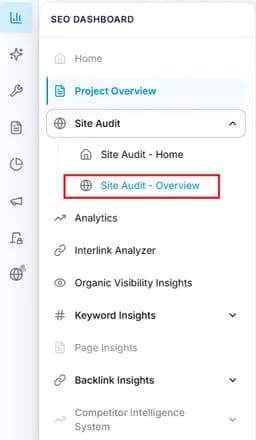
Capture: Dashboard Page
Open Page Experience
Navigate to SEO Dashboard → Site Audit → Page Experience.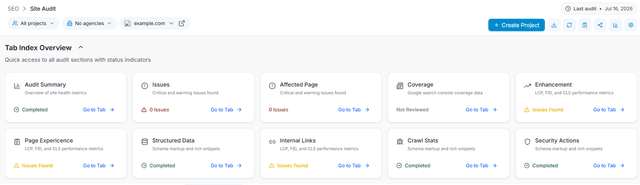
Capture: Enchancemnet Page
Review Core Web Vitals
Review LCP, FID, and CLS metrics to identify Good, Needs Improvement, and Poor performance.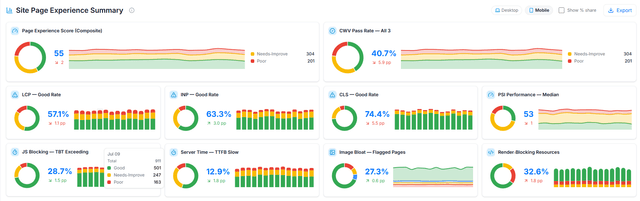
Capture: Page Experience metrics
Filter performance issues
Use metric and status filters to focus on specific performance problems.
Capture: Diagnose Performance Issues Page
Review recommendations
Open URL groups to view optimisation recommendations and suggested improvements.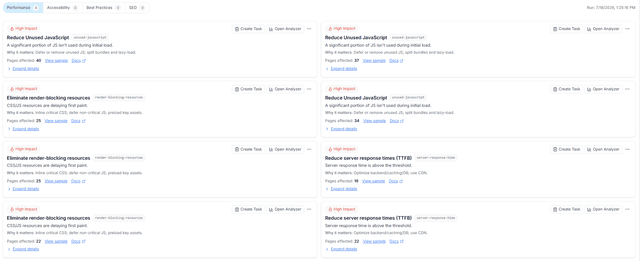
Capture: recommendations Page
Create optimisation tasks
Assign performance improvements to team members with clear requirements.Verify improvements
Run another Site Audit after changes and confirm performance improvements.
Expected result
- Poor-performing pages are identified.
- Core Web Vitals problems are easier to prioritise.
- Developers receive clear optimisation tasks.
- Performance improvements can be monitored after updates.
Key features
What you’ll see
Performance overview
The Page Experience page provides a visual overview of Core Web Vitals performance and tools to identify optimisation opportunities.
Common workflows
Prioritise poor-performing pages
Open Page Experience
Navigate to Site Audit → Page Experience.Filter Poor pages
Use performance filters to identify URL groups requiring attention.Review recommendations
Open details and review suggested optimisation actions.
Assign and track improvements
Create tasks
Assign optimisation work to developers or team members.Implement changes
Apply improvements based on recommendations.Verify results
Run another audit and confirm performance improvements.
Tips and best practices
- Prioritise Poor pages before Needs Improvement pages.
- Fix template-level performance issues when multiple URLs are affected.
- Track Core Web Vitals before and after optimisation.
- Include affected metrics when creating tasks.
- Review Page Experience after major website updates.
- Export reports before and after optimisation cycles when available.
Do not optimise only one Core Web Vital metric. Improving LCP does not guarantee a good experience if CLS or interaction performance issues remain.