
Summary
What this is
The Site Audit Issues tab centralises all technical problems detected during an audit. It helps you review issues by severity, understand affected pages, assign fixes, and monitor improvements across future audit runs.
What you can do
- Review issues categorized as Critical, Warning, and Notice.
- Search and filter issues to find specific problems quickly.
- Open issue details to view recommendations and affected pages.
- Create tasks and assign fixes to team members.
- Track resolved issues after new audit runs.
Prerequisites
Requirements
- A Wranker project exists and is connected to a domain.
- At least one Site Audit has completed for the selected project.
- You have access to the Site Audit module.
- Task creation permission is required to assign issues.
The Issues list is populated from completed Site Audit results. If no audit has finished, there may be no issues available to review.
Purpose
What this is
The Issues tab provides a central workspace for errors, warnings, and notices detected during a Site Audit. It works as a technical SEO backlog where you can prioritize fixes, assign ownership, and track progress.
When to use it
- After completing a Site Audit to review detected problems.
- When prioritising technical SEO fixes.
- Before assigning work to developers or team members.
- When checking whether previous fixes remain resolved.
Where to find it
- Open SEO Dashboard.
- Select Site Audit.
- Open the Issues tab.
Where to find Site Audit Issues
- Open the Site Audit module for your website.
- Navigate to the Issues section.
- Confirm you are viewing the correct project scope.
Always confirm the selected project before reviewing or assigning issues, especially when managing multiple websites.
Step-by-step: Review Site Audit Issues
Open Site Audit
Open the Site Audit module for the website you want to analyze.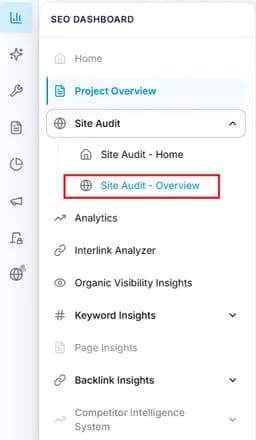
Capture: start site audit
Open Issues tab
Select Issues from the Site Audit navigation to view detected problems.
Capture: issues
Review detected issues
Review Critical, Warning, and Notice issues based on severity and impact.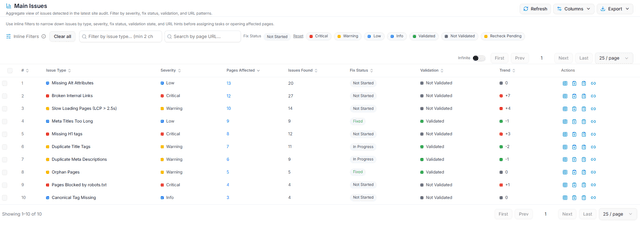
Capture: issues
Open issue details
View recommendations, affected pages, and additional information before assigning work.
Key Features
Start with Critical issues first, then review Warnings and Notices.
What You'll See
Common Workflows
Find and Prioritize Issues
Open Issues
Navigate to Site Audit → Issues.Filter Critical issues
Review high-impact technical problems first.Review details
Open issue details and check recommendations.
Assign Issues to Team Members
Select issue
Open an issue from the table.Create task
Assign ownership, add details, and save.
Track Fix Progress
- Mark issues as resolved after implementing fixes.
- Run a new audit to validate improvements.
- Compare issue changes across audits.
Tips & Best Practices
- Review Critical issues first to reduce high-impact SEO risks.
- Use severity filters before searching.
- Include affected pages when assigning fixes.
- Re-run audits after fixes to confirm resolution.
- Export issue lists to compare progress over time.
Marking an issue as resolved updates workflow status, but a new audit confirms whether the technical issue is actually fixed.