
Purpose
What this is
The Affected Pages tab lists all URLs that have issues detected during a Site Audit. Each page displays Critical, Warning, and Notice issue counts so you can identify which URLs need attention first.
When to use it
- Prioritize technical fixes by affected URL.
- Identify pages impacted by multiple audit issues.
- Find repeated problems across page types or templates.
- Assign ownership for specific page-level fixes.
Where to find it in the UI
- Open SEO Dashboard.
- Select Site Audit.
- Open Affected Pages from the Tab Index using Go to Tab.
- Open Affected Pages from Site Audit navigation if available.
Use Affected Pages to understand where problems exist. Use the Issues tab to understand what the problems are and how to fix them.
Step-by-step
Open Site Audit
Open SEO Dashboard → Site Audit for the website you want to review.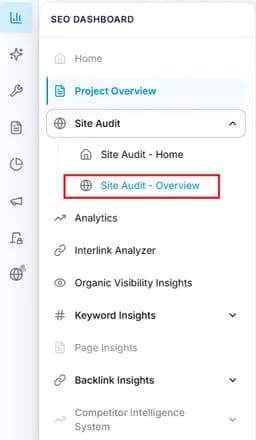
Capture: SEO Dashboard with Site Audit selected in the left sidebar navigation.
Navigate to Affected Pages
Open the Affected Pages tab from the Tab Index card or Site Audit navigation.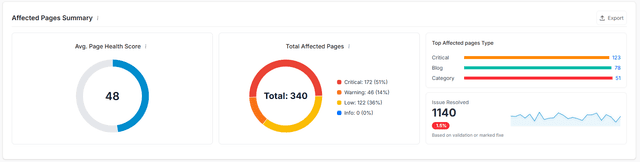
Capture: SEO Dashboard with Affected Pages tab selected in the left sidebar navigation.
Review affected URLs
Check Critical, Warning, and Notice counts for each affected URL.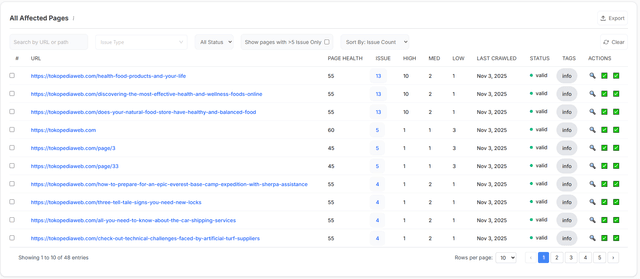
Capture: SEO Dashboard with Affected Pages tab selected in the left sidebar navigation.
Filter and search pages
Use severity filters, issue type filters, and search to find specific pages.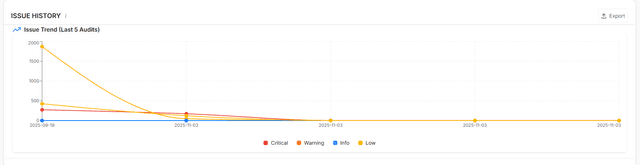
Capture: SEO Dashboard with Affected Pages tab selected in the left sidebar navigation.
Open page details
Review recommendations, related issues, and available task actions from the details drawer.Create tasks
Assign page fixes to team members and track ownership.Track improvements
Re-run audits after fixes and compare affected pages over time.
Key Features
Filter Critical severity first, then review pages with the highest issue counts to prioritize fixes.
What You'll See
Common Workflows
Prioritize Pages for Fixes
Apply Critical filter
Start with high-impact pages requiring immediate attention.Review affected pages
Check pages with the highest issue impact.Create tasks
Assign required fixes to responsible team members.
Investigate Page Issues
Select URL
Open a page from the affected pages list.Review issues
Check recommendations and related technical problems.Plan remediation
Use recommendations to prepare fixes.
Track Improvements
- Fix affected pages.
- Run another audit.
- Compare affected page results over time.
Tips & Best Practices
- Focus on Critical issues before Warning and Notice issues.
- Review recommendations before creating tasks.
- Use URL search for large websites.
- Export reports before and after major fixes when available.
- Keep regular audit schedules to measure improvements.
Affected Pages identifies impacted URLs. Use Issues to investigate root causes and technical solutions.