
Purpose
What this is
Audit Summary provides a high-level overview of your latest Site Audit results. It shows issue totals by severity, average page experience metrics, and the latest audit status so you can quickly understand your website’s technical health.
When to use it
- Check overall technical SEO health after an audit run.
- Identify whether critical issues require immediate attention.
- Review audit freshness before making decisions.
- Prepare a quick health summary for stakeholders.
Where to find it
- Open SEO Dashboard.
- Select Site Audit.
- Open the Audit Summary card from Site Audit Overview.
- Confirm the selected project and agency filters.
Key Features
Total Issues
Shows detected issues grouped by severity such as Critical, Warning, and Notice.
Average Page Experience
Displays average performance and user experience metrics.
Audit Status
Shows whether the audit data is current, outdated, or requires a new run.
Quick Links
Jump directly to detailed tabs like Issues or Page Experience.
Tip
Use Audit Summary as a starting point. Investigate and fix issues from detailed tabs rather than relying only on summary numbers.
What You'll See
Total Issues Card
Displays issue counts separated by severity.
Page Experience Card
Shows average experience metrics across audited pages.
Last Audit Run
Shows when the latest audit data was generated.
Quick Navigation
Links to detailed audit sections for deeper analysis.
Project Filters
Switch between projects and agency scopes when available.
Status Indicators
Colour indicators help identify urgent areas.
Step-by-step
Open Audit Summary
Open SEO Dashboard → Site Audit → Audit Summary.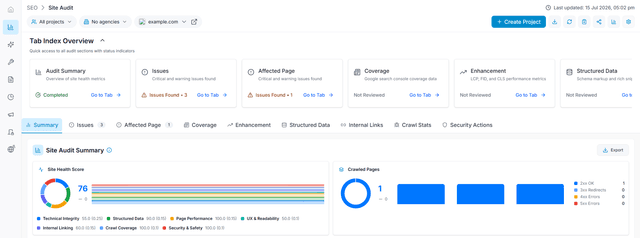
Capture: check connecion
Confirm project scope
Verify that the selected project and agency (if available) match the website you want to review.
Capture: select project
Review Total Issues
Check Critical, Warning, and Notice counts to understand priority.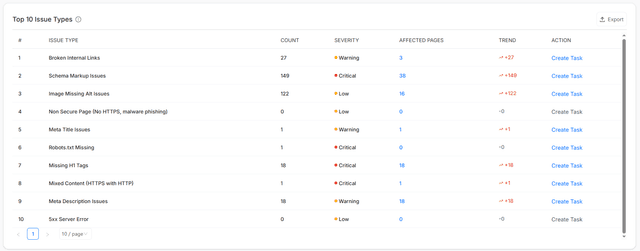
Capture: issues total
Check page experience
Review average page experience metrics and identify whether deeper investigation is required.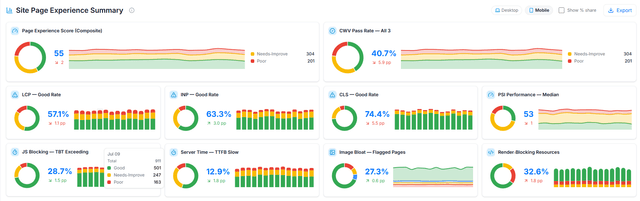
Capture: page experience
Check audit freshness
Confirm the Last audit run date and status before making decisions.Open detailed reports
Use quick links such as Go to Issues to continue investigation.
Common workflows
Review overall website health
- Open Audit Summary.
- Review issue severity.
- Check audit freshness.
- Open detailed tabs for fixes.
Move from summary to action
- Identify the highest priority metric.
- Click the related quick link.
- Investigate issues in the detailed report.
- Assign fixes if required.
Tips and best practices
- Always confirm project scope before comparing issue totals.
- Fix Critical issues before Warning and Notice items.
- Check audit freshness before reporting results.
- Use detailed tabs for investigation instead of relying only on summary metrics.