
Summary
What this is
Connecting Google Analytics 4 (GA4) allows Wranker to display GA4 metrics inside the Analytics panel. This integration only affects Analytics and does not impact Site Audit or other Wranker modules.
Ways to connect GA4
- Analytics → Manage Integrations (fastest when already viewing Analytics).
- Project Control Center (PCC) → Integrations (recommended for managing project integrations).
Your Google account does not need to match your Wranker login. Any Google account with access to the correct GA4 property can be used.
Prerequisites
Before you begin
- Have a Wranker project created.
- Access to the correct Google Analytics 4 property.
- A Google account with permission to that GA4 property.
- Access to Integrations or Project Control Center (PCC).
If you manage multiple Google accounts, sign in with the account that already has access to the required GA4 property.
Where to Connect GA4
Connection options
Option A: Connect from Analytics
Open Analytics
Navigate to the Analytics panel for your project.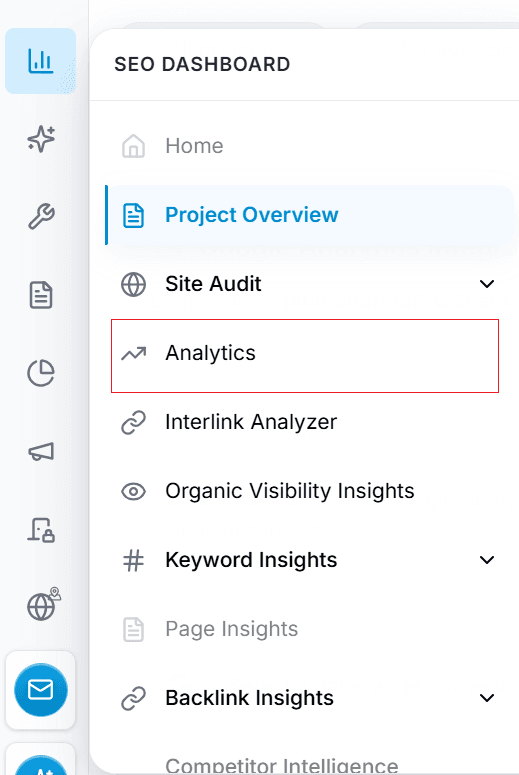
Capture: Analytics panel showing the Analytics overview graph and the date-range selector.
Manage Integrations
Click Manage Integrations to begin the GA4 connection process.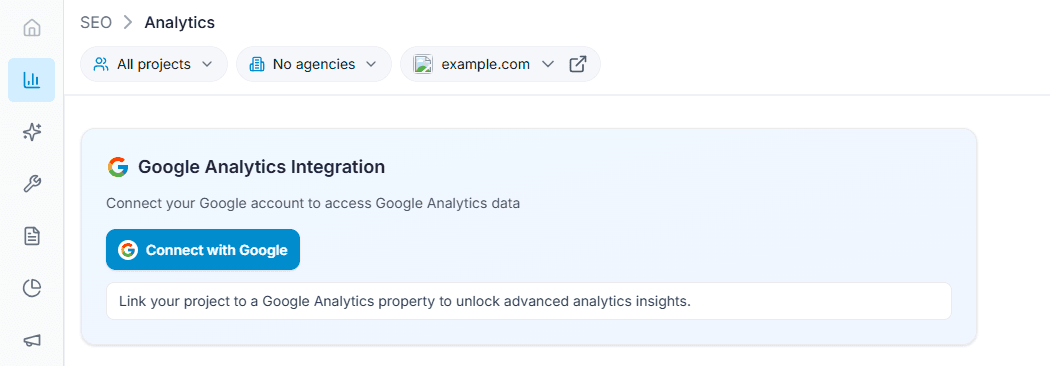
Capture: Analytics panel showing the Analytics overview graph and the date-range selector.
Sign In
Sign in with a Google account that has access to the required GA4 property.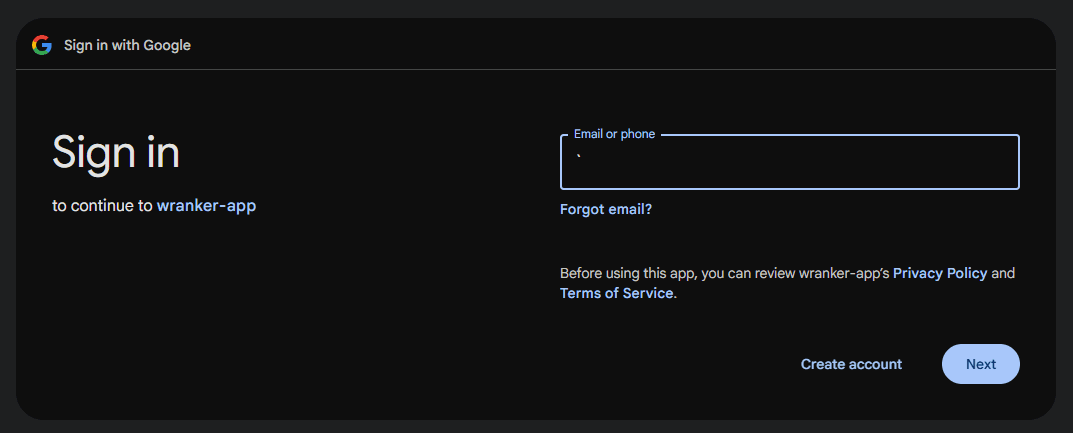
Capture: Analytics panel showing the Analytics overview graph and the date-range selector.
Authorize Access
Grant the required permissions and return to Wranker to verify Analytics data.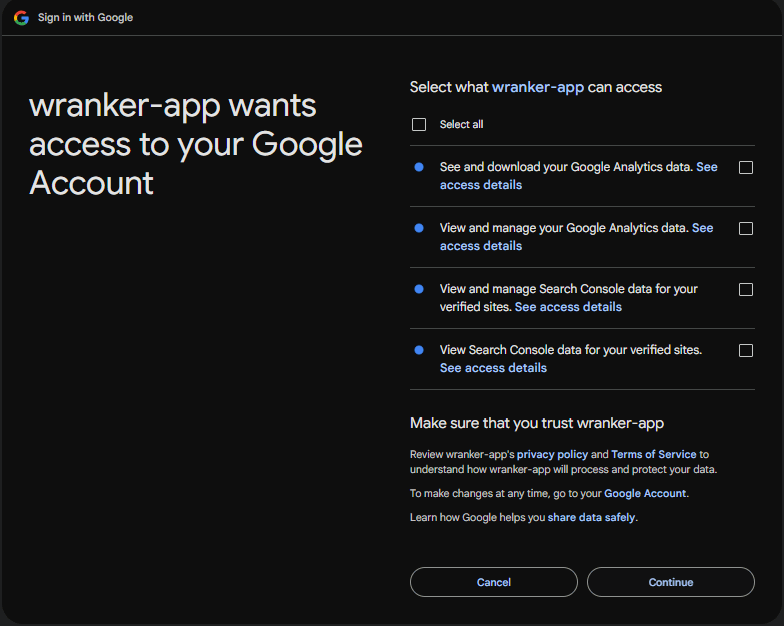
Capture: Analytics panel showing the Analytics overview graph and the date-range selector.
Option B: Connect from Project Control Center
Open PCC
Open Project Control Center for the selected project.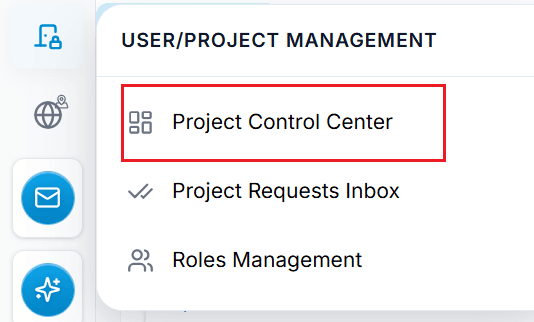
Capture: Analytics panel showing the Analytics overview graph and the date-range selector.
Open Integrations
Navigate to the Integrations section to manage connected services.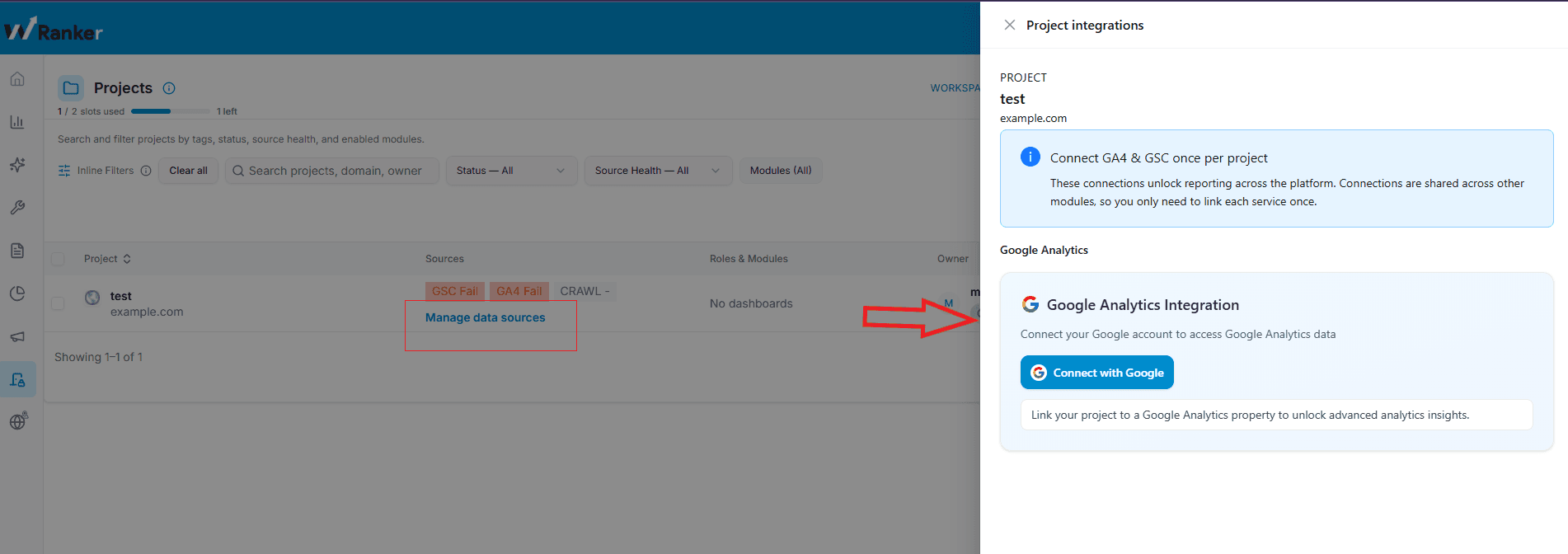
Capture: Analytics panel showing the Analytics overview graph and the date-range selector.
Connect Google Analytics 4
Authorize a Google account with access to the required GA4 property.Capture: Analytics panel showing the Analytics overview graph and the date-range selector.
Verify Analytics
Return to the Analytics panel and confirm GA4 metrics are available.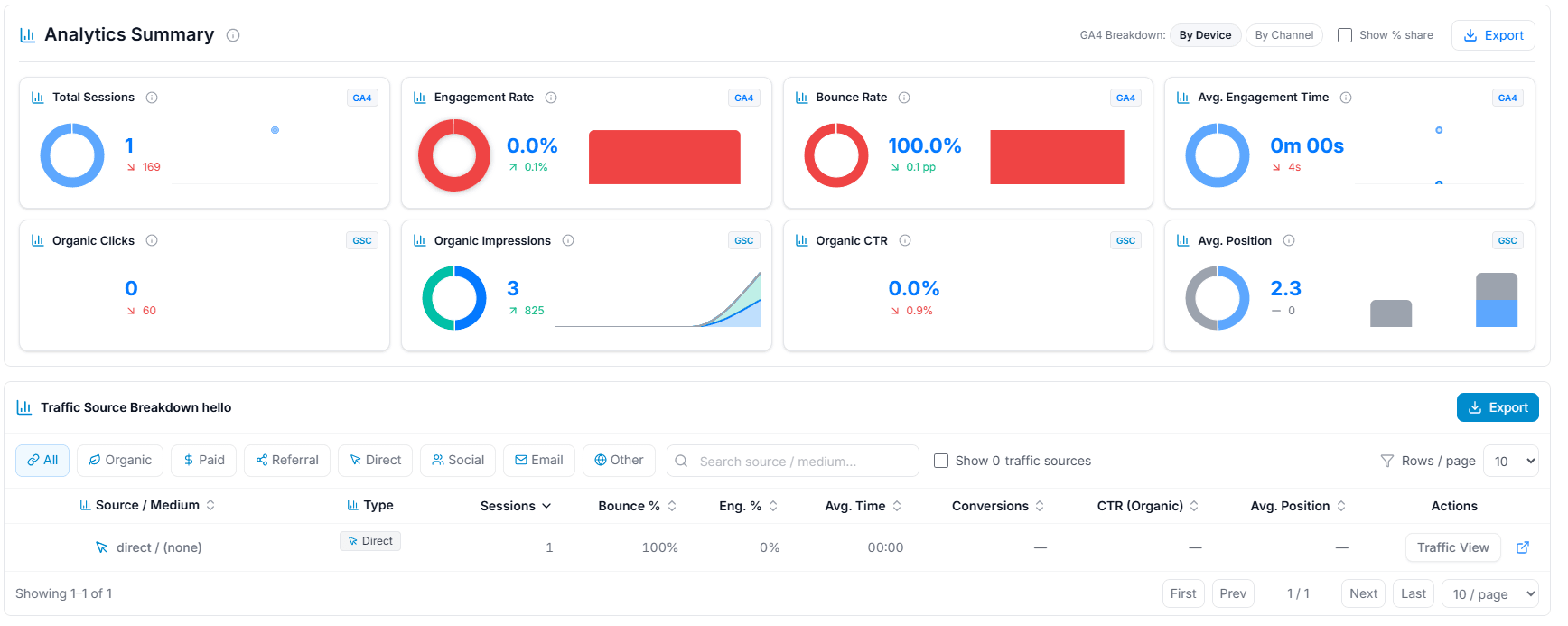
Capture: Analytics panel showing the Analytics overview graph and the date-range selector.
Where GA4 Data Is Used
Usage
- GA4 metrics appear only in the Analytics panel.
- GA4 does not affect Site Audit reports.
- GA4 integration is separate from Google Search Console.
Expected Result
After a successful connection
- The project is connected to Google Analytics 4.
- GA4 metrics become available in the Analytics panel.
- The connection can be managed from PCC → Integrations.