
Purpose
What this is
Filters help you narrow Organic Visibility data to a specific project, date range, device, location, or search context. Segments combine multiple filters into consistent reporting views, making comparisons more accurate across Organic Visibility pages.
When to use it
- Compare Organic Visibility reports using the same filter scope.
- Analyze performance across devices or locations.
- Prepare consistent exports for stakeholder reporting.
- Create repeatable SEO reporting segments.
- Troubleshoot why different Organic Visibility pages show different values.
Where to find it
- Open Organic Visibility Overview.
- Use Top Pages, Top Keywords, Competitor Comparison, or Keyword Movement.
- Apply filters from the page toolbar before reviewing data.
Step-by-step
Select Project
Choose the website project you want to analyze.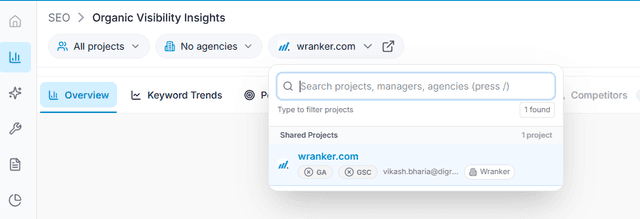
Capture: the Overview chart and the metric cards
Choose Date Range
Select the reporting period and keep it consistent when comparing reports.
Capture: the Overview chart and the metric cards
Apply Device & Location Filters
Filter results by Desktop, Mobile, Tablet, Country, or Region.
Capture: the Overview chart and the metric cards
Add Optional Filters
Use Search Type or SERP Feature filters when available.Reuse Your Segment
Keep the same filter combination across reports and exports for consistent analysis.
Where to find filters
Top Bar Filters
Project selector and Date Range are available on every Organic Visibility page.
Table & Chart Filters
Filter by Device, Country, Search Type, and SERP Features when supported.
Recommended filter order
Always verify Project → Date Range → Device → Country/Regionbefore exporting or comparing Organic Visibility reports.
Available Filters
Project
Select the website or client project to analyze.
Date Range
Controls the reporting period used throughout Organic Visibility.
Device
Compare Desktop, Mobile, and Tablet performance.
Country / Region
Review visibility for specific geographic markets.
Search Type
Analyze different Google search surfaces when available.
SERP Features
Focus on keywords that trigger rich search results.
Build Useful Segments
What is a Segment
A segment is a reusable combination of filters that creates a consistent reporting view across Organic Visibility reports.
Example Segments
- Core Market — Mobile + Primary Country + Last 28 Days.
- Desktop Analysis — Desktop + Primary Country + Last 90 Days.
- New Market — Mobile + New Country + Last 28 Days.
Keep segment names consistent when sharing screenshots, exports, or reports with your team.
Suggested User Workflows
Create a Reporting Segment
Select Project, Date Range, Device, and Country filters.Validate Results
Confirm that charts and tables update with the selected filters.Compare Reports
Reuse the same segment across Overview, Top Pages, Top Keywords, and other Organic Visibility reports.Export Data
Verify your filter scope before downloading reports.
Tips & Best Practices
Recommendations
- Keep the same Project and Date Range when comparing reports.
- Document the active segment in exports and screenshots.
- Create standard team segments for recurring SEO reporting.
- Verify optional filters before drawing conclusions.
Changing the Device, Country, or Date Range changes the reporting scope. Always verify active filters before making SEO decisions.