
Purpose
What this is
Organic Visibility Export & Reporting helps you share SEO insights with stakeholders by exporting charts, tables, and filtered data or by adding Organic Visibility widgets to recurring reports.
When to use it
- Share Organic Visibility performance with clients or internal teams.
- Track SEO progress using consistent reporting periods.
- Create recurring reports with Organic Visibility data.
- Export keyword or page data for further analysis.
Where to find it
- Open Organic Visibility Overview, Top Pages, or Top Keywords.
- Use Export actions from chart menus or table toolbars.
- Open Report Builder (if available) to add Organic Visibility widgets.
Step-by-step
Open an Organic Visibility Report
Navigate to the Organic Visibility page you want to export.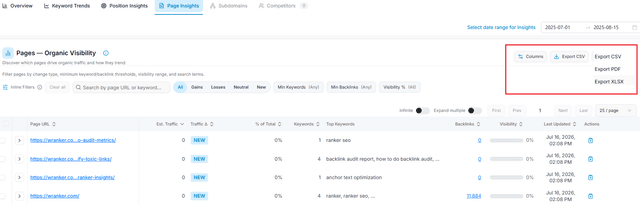
Capture: the Overview chart and the metric cards
Verify Filters
Confirm the active Project, Date Range, Device, and Country before exporting.
Capture: the Overview chart and the metric cards
Choose an Export Option
Select CSV for analysis, PDF for sharing, or Add to Report for recurring reports.Export or Save
Download the report or add charts and tables directly to Report Builder.
What Can Be Exported
Charts
Export trend charts and visual summaries.
Tables
Download keyword and page performance data.
Selected Rows
Export only the items you've selected.
Reports
Add Organic Visibility widgets to recurring reports.
Where to Find Export Controls
Panel Header
Export the current Organic Visibility report.
Chart Actions
Download individual charts from the chart menu.
Table Toolbar
Export filtered table data directly from the toolbar.
Bulk Actions
Export only selected rows after making a selection.
Export availability may vary depending on the Organic Visibility page and your account permissions.
Export Formats
CSV
Ideal for Excel, Google Sheets, and detailed analysis.
PDF
Best for client reports and executive summaries.
Selected Rows
Export only important keywords or pages.
Complete Table
Download the full filtered dataset.
Suggested User Workflows
Export Top Pages or Keywords
Open the desired report, apply filters, and export the results.Create an SEO Action List
Select important rows and export only those items.Build Recurring Reports
Use Add to Report to include Organic Visibility widgets in scheduled reports.Compare Performance Over Time
Export the same filtered report across multiple date ranges to compare SEO performance.
Tips & Best Practices
Recommendations
- Verify Project and Date Range before exporting.
- Include filter or segment names in exported filenames.
- Use CSV for analysis and PDF for presentations.
- Keep filters consistent when comparing reports.
- Export selected rows to create focused SEO action lists.
Exported results always reflect the currently applied filters. Changing the Project, Device, Country, or Date Range changes the exported data.