
Purpose
What this is
Organic Visibility Settings & Integration helps you manage the project settings and external connections that power Organic Visibility data. Use this page to verify integrations, troubleshoot missing data, and configure project defaults.
When to use it
- Organic Visibility charts or tables are empty or incomplete.
- Verify that Google Search Console is connected.
- Reconnect expired or unauthorized integrations.
- Investigate delayed data synchronization.
Where to find it
- Open SEO Dashboard.
- Select Organic Visibility.
- Open Project Control Center (PCC) or Settings → Integrations.
- Review connected data sources and project settings.
Where to Manage Integrations
Available locations
Project Control Center
Manage integrations for a specific project.
Settings / Integrations
Manage connected accounts across your workspace.
Organic Visibility Prompts
Connect required data sources directly from the module.
Tip
Use the Project Control Center (PCC) when working with a specific website because it displays the integration status for that project.
Verify Integration Status
What this checks
Verify that the correct Google account, Search Console property, and permissions are connected before reviewing Organic Visibility data.
Open PCC
Open Project Control Center for the selected project.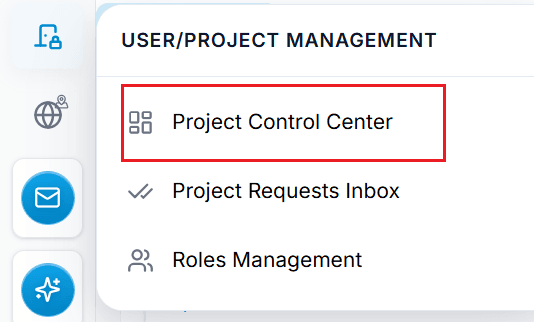
Capture: open pcc
Check Connection
Verify the Google Search Console connection status.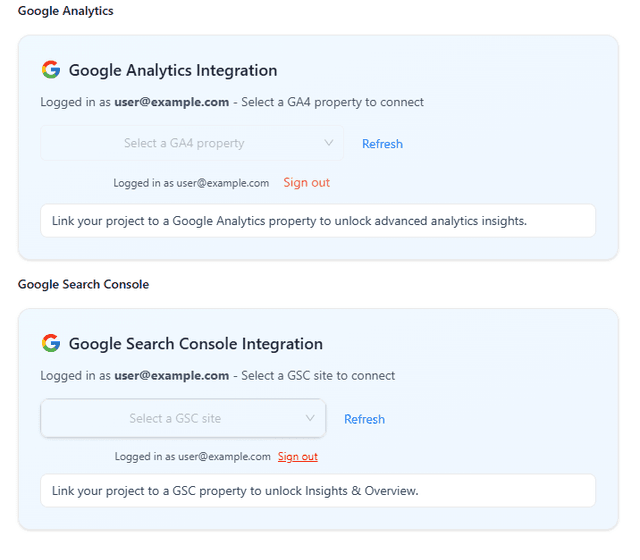
Capture: check connecion
Confirm Property
Ensure the connected Search Console property matches your website.Validate Data
Return to Organic Visibility and confirm charts and tables load correctly.
Always verify the connected Search Console property. A valid connection can still point to the wrong website.
Connect, Refresh & Re-authorize Data Sources
Connect Google Search Console
Open PCC or Integrations and begin the Google Search Console connection process.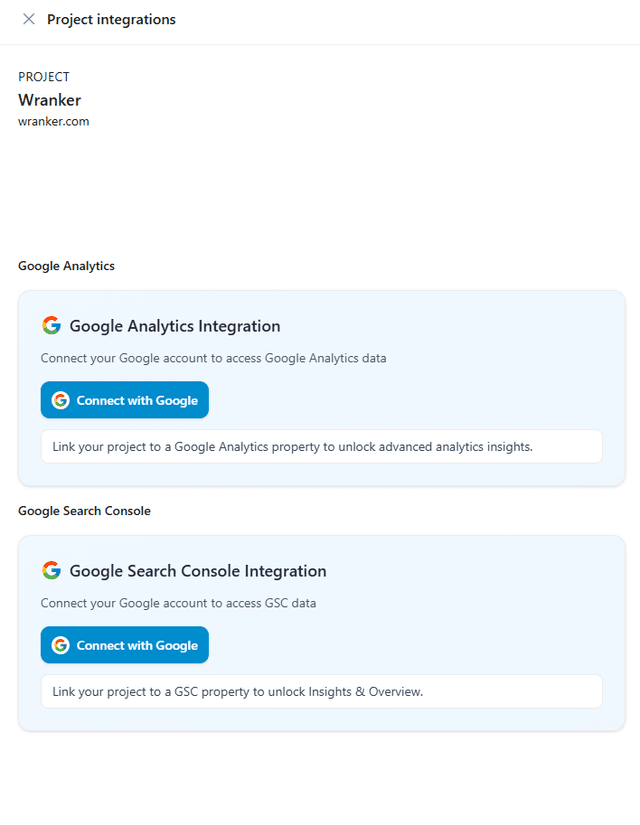
Capture: google connecion
Choose the Correct Account
Select the Google account with access to your Search Console property.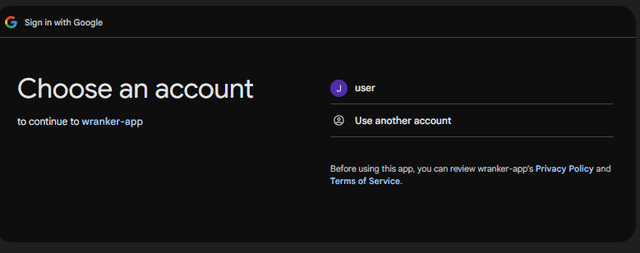
Capture: choose account
Authorize Access
Grant the required permissions and complete authorization.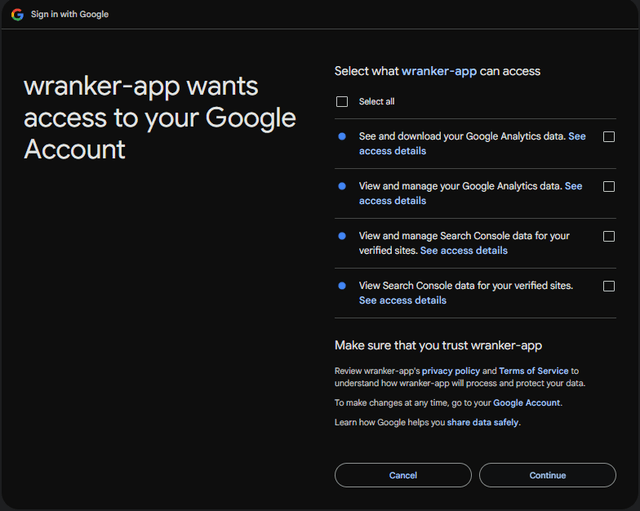
Capture: authorize access
Refresh Organic Visibility
Reload Organic Visibility and verify that updated data appears.
The first synchronization after connecting a new integration may take some time to complete.
Project-Level Settings
Available settings
Default Date Range
Choose the default reporting period for Organic Visibility.
Primary Country
Set the default geographic market for analysis.
Preferred Device
Choose the default Desktop, Mobile, or Tablet view.
Available settings depend on your workspace permissions and subscription plan.
Data Refresh Frequency & API Limits
Possible causes of delayed updates
- A newly connected integration is still syncing.
- Permissions or account access have changed.
- External API quota limits have been reached.
- Large project datasets require additional processing time.
Suggested Workflows
Verify Integration
Check the Google Search Console connection status from PCC.Confirm Project Scope
Verify the active Project, Date Range, Device, and Country filters.Validate Organic Visibility
Return to Organic Visibility and ensure charts and metrics load correctly.